Who Can Use Flash?
You use Flash either as internal user (i.e. as a Product/Pricing Analyst or as a part of the sales team for Cooper) or an agent - and, of course, each would have their own
user setup. The environments for both users are similar for the most part, but there are functions that are available to an agent but not to the internal
user and vice versa.
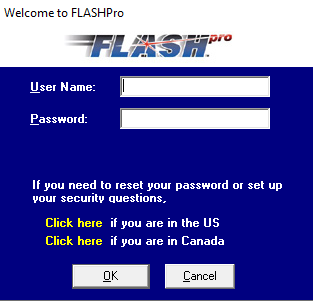
The login page for both looks the same, though! So, you don't need to worry about which environment you're logging into - just type in your
username and password.
Once You have Logged In
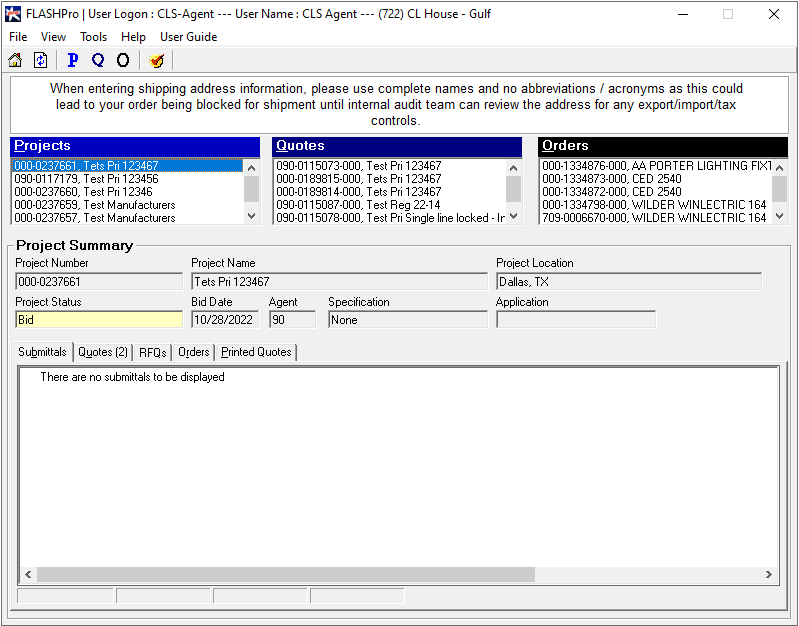
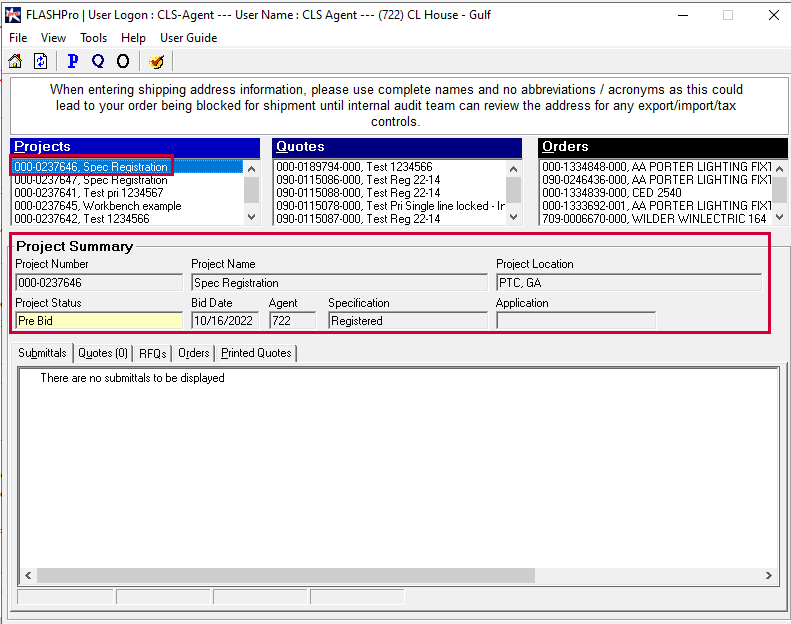
The first thing you're going to see when you login is the Homepage, which looks like this:
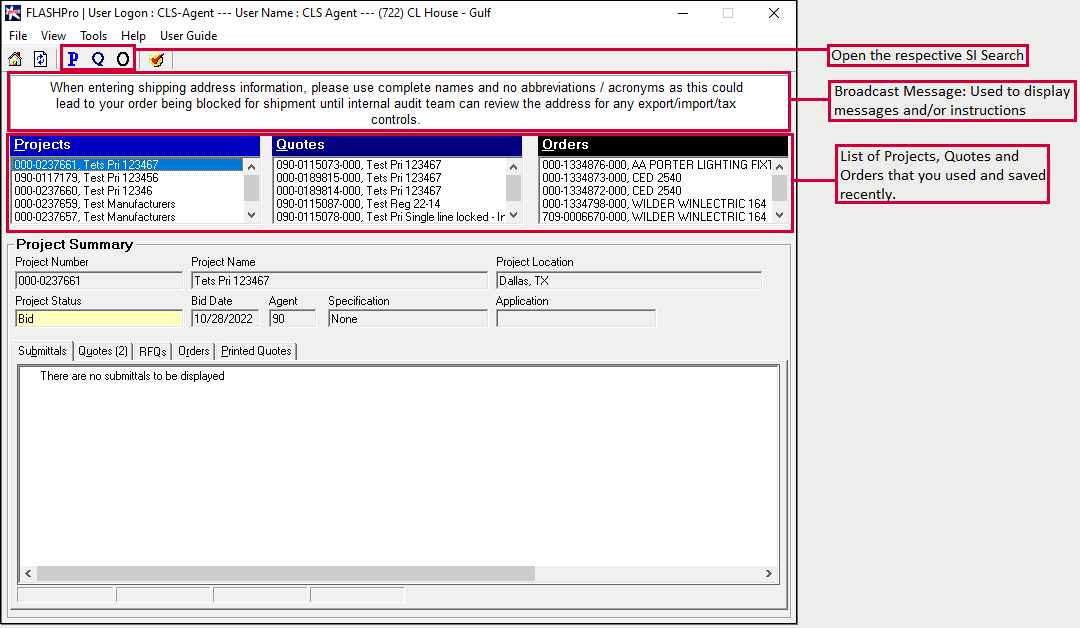
You will have all the Projects, Quotes and Orders listed out, and you can use this page to open them up. And do you see those little P, Q, O
icons at the top, above the list of Projects? That's where you go to open a new Sales Instrument
Before we move onto the creation of projects, quotes, and orders, let's get familiarized with Sales Instrument layout.
For the most part, the layout, and the functionalities of the three Sales Instruments are very similar. But
much like the difference between an agent login and an internal login, there are certain functionalities that maybe in one SI but not in
another.
Flash Sales Instrument Layout
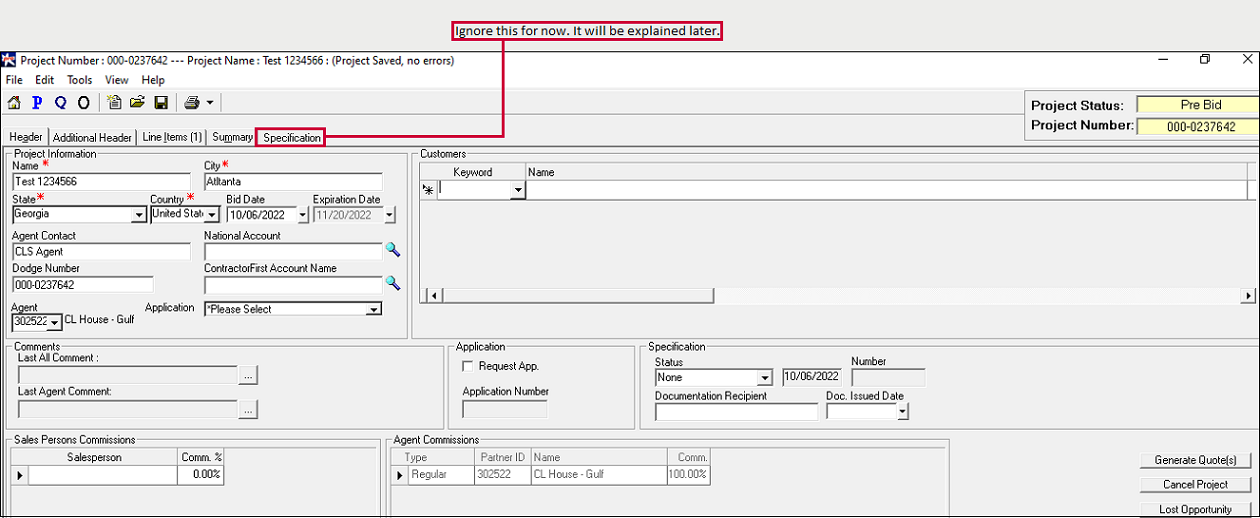
A Project, Quote or Order that is created will always have these four tabs: Header, Line Items,
Summary and Additional Header. It is probably worth noting that the Header and Line Items tab are going to be in focus for a
lot of this documentation - they are currently very hot and happening and we like to be in vogue.
The Summary Tab allows users to quickly locate all Q/O that are linked to the Project (P) (i.e., File Folder).
Projects also has the 'Specification' tab. The 'Additional Header' tab will be covered under Order Manufacturers.
The Menu Bar functionality is a familiar format similar to older Windows operating systems such as Windows
XP...or Windows Vista...or whatever came in the late 1900s. Each item on the menu bar contains multiple drop down options that
are inherent to the subject line.
Short Cut Icons are located below the Menu Bar.
For a list of all the functionalities check out 'Other Functionalities' under 'How To...'
Sales Instrument Number and Status
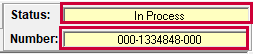
The sales instrument Status and Number are displayed in the top right corner of the sales instrument panel as shown below.
The unique SI Number is assigned when the SI is created. This number does not change once it is assigned. You can find the various Sales Instrument Status under 'Appendix'.
The Header
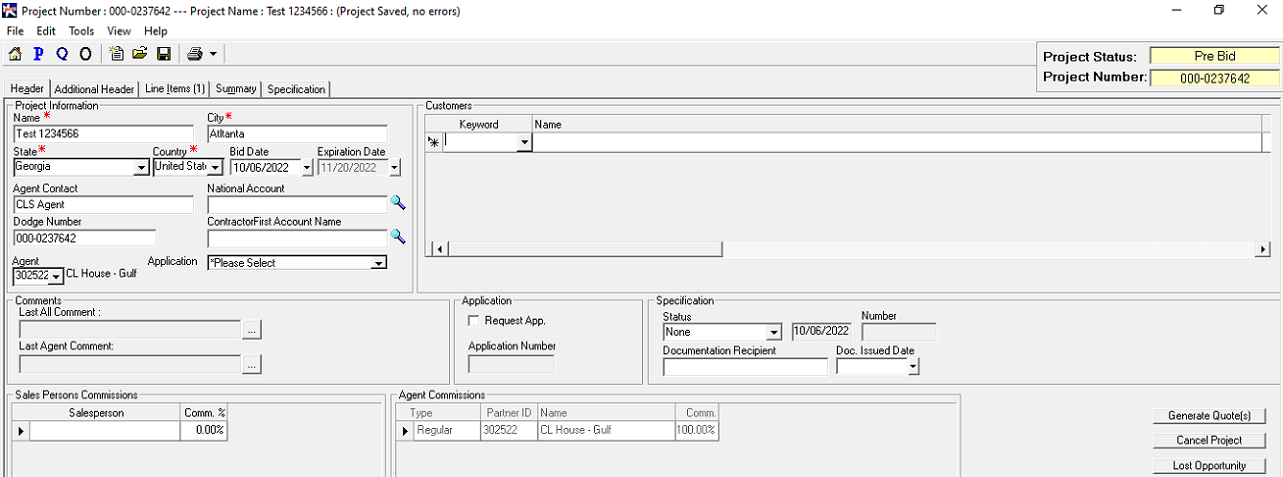
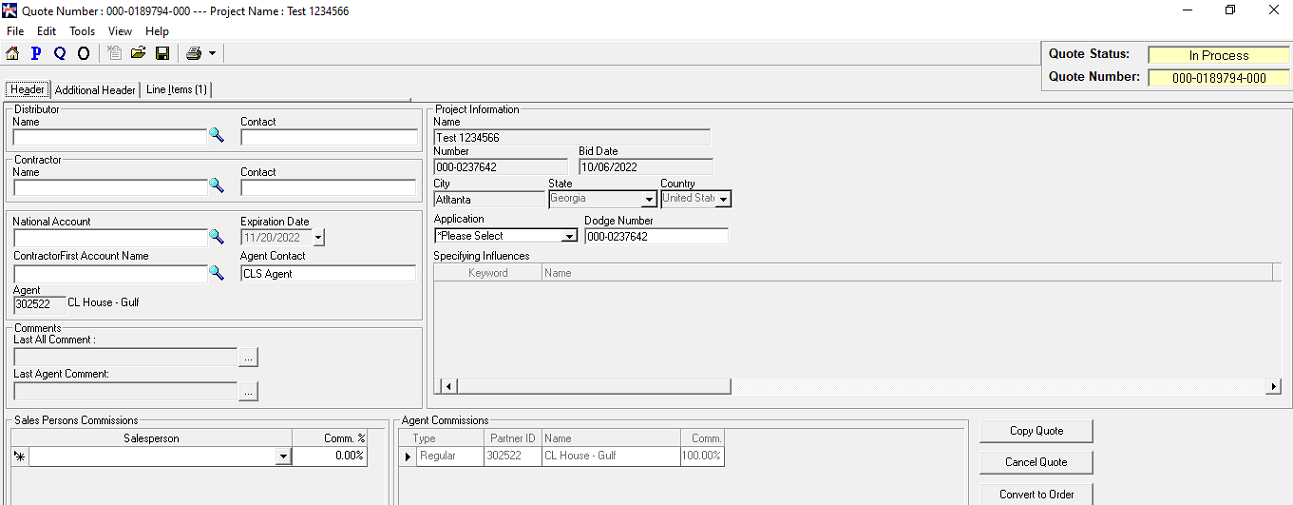
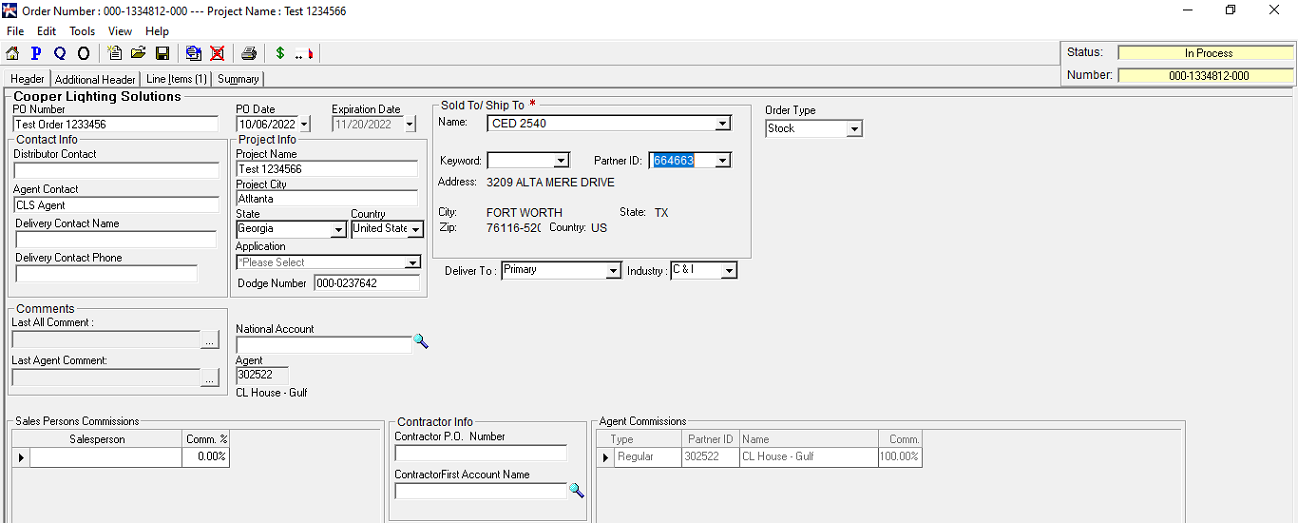
This is where we see the information about the sales such as the agent making the sale, the customer to whom they are selling, the expiration
date, etc. The layout varies from projects to quotes to order, but, at minimum, they give you the same set of details - specifically, the agent
location, contact and the customers.
Required items (fields) are indicated with red asterisk (*). These fields must be completed in order to Save
or progress (continue) within the P/Q/O. Additional fields can be populated based on individual requirements or preferences.
Project Header
Quote Header
Order Header
Line Items
The Line items tab is where the user enters the products being sold and the prices at which they're being
sold. The line items in the tab are collectively referred to as Bill of Materials (or BOM).
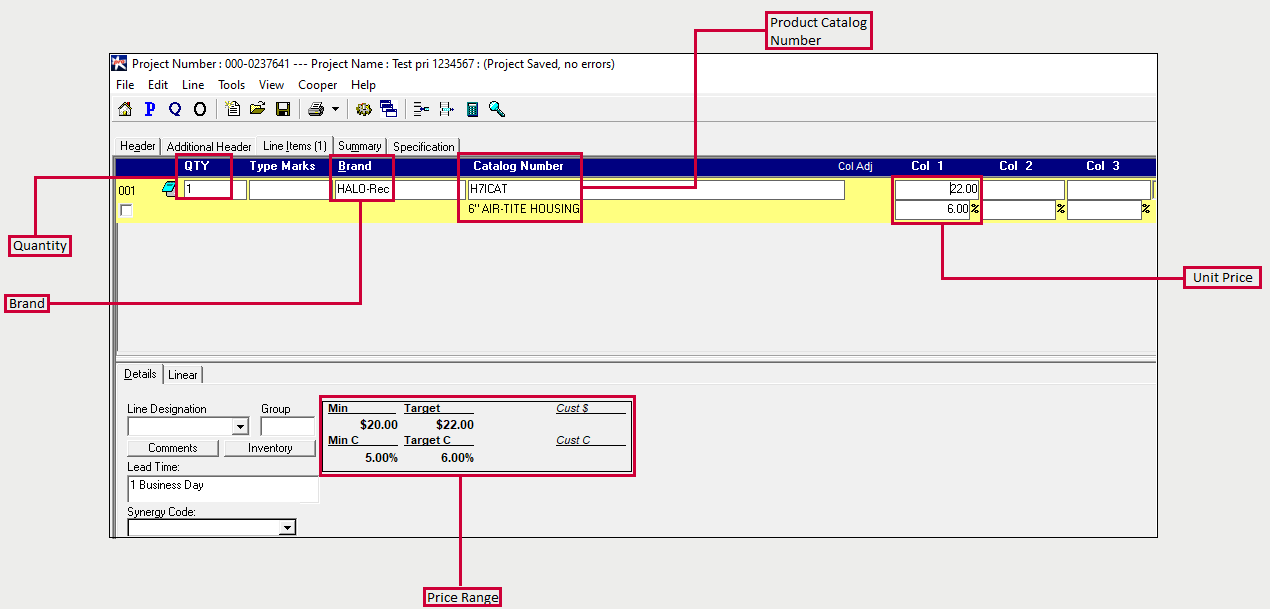
The 'Bill of Materials' contains Qty, Type Marks, Brand, Catalog Number, Unit Price and Commission. Type
Marks and Catalog Numbers are common elements found in a Fixture Schedule.
A 'Line Item' is one item in the BOM. It describes the quantity and price at which the product is being
sold at. It includes the following elements:
- Quantity: Quantity required for job's completion.
- Brand: Identifies family of product for respective manufacturer.
- Catalog Number: Specific item requested/quoted.
- Unit Price: the field where the user can enter the price at which they want to sell a particular
product to the customer. The commission for this selling price is determined based on the price point specified in the price
range. Based on this price range, the unit price may or may not require approval.
-
The 'Price Range' is a pricing reference you can use to determine the best price at which
you can sell the item and what commission they might receive for it. There are generally three fields in the price range, one
for each price point, which are:
Target (Tar): A competitive price that provides increased sales volume and commission levels
Minimum (Min): Recommended minimum price and corresponding commission
Walkaway Price (Walk): If visible, a walk-away price has been established at the factory to
expedite lower unit price and commission.
Summary
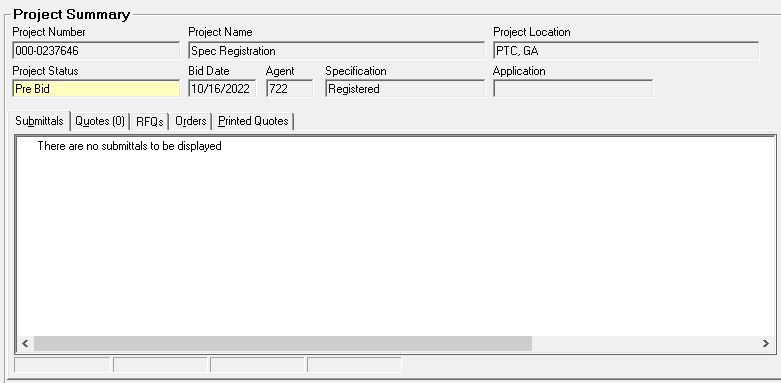
A Summary is available for Projects, Quotes and Orders. There are two ways to access this:
From the homepage
To access the Summary from the Homepage, click on the Project/Quote/Order for which you want to get the summary. The Summary appears in the
second half of the screen
From inside the Sales Instrument
Open your Project, Quote and Order, and go to the Summary tab.
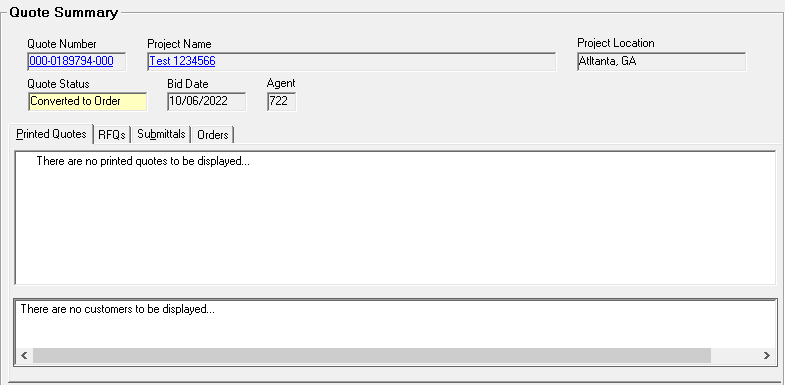
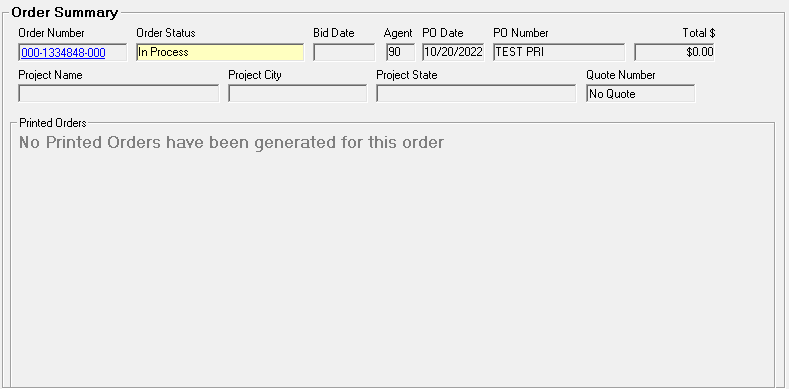
The summary has the same details and will even look the same regardless of whether you open it from the Homepage or the Sales Instrument. At a minimum, you will see the Project/Quote/Order name, the agent, and its status. You can also see if they have any other Sales Instrument linked to them (Eg, you can see whether the quote has been converted to an order or if an order is linked to Project, etc.)
Project Summary
Quote Summary
Order Summary
Now that you can navigate through the Sales Instruments, you can go click on the respective links to create a project, a quote and an order.